← All classrooms
Room 205A
Second Floor
Small hybrid room with a display and Logitech soundbar, Zoom Rooms tablet and Extron controls.
Display
Wall display with integrated soundbar and camera
Audio
Logitech soundbar for room sound and microphone pickup, with Bluetooth audio for pairing your own device
Good to know
The Panasonic remote stays in the room — leave it by the display when you are done.
Equipment photos
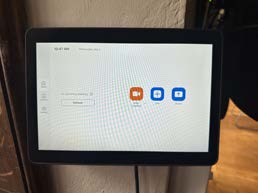
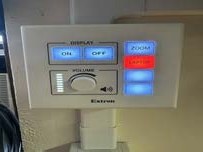
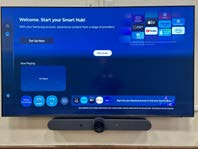
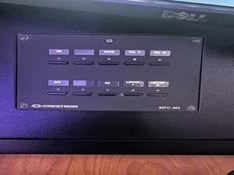
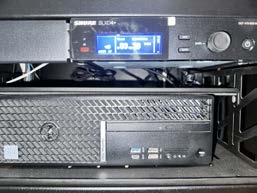
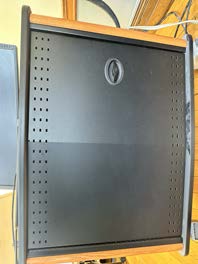
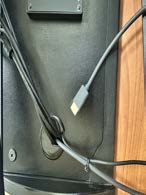
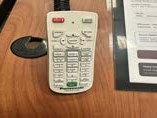
Equipment in this room
- Zoom Rooms touch tablet
- Extron wall control panel
- Display with Logitech soundbar
- Crestron button panel
- Dell OptiPlex 7090 PC and Shure receiver
- Tabletop HDMI cable
- Panasonic projector remote
- Bluetooth audio — pair a phone, tablet or laptop to play sound in the room
Step by step
1. Turn on
- 1Wake the system: press ON at the Extron wall panel, Crestron panel or Zoom Rooms tablet.
- 2Wait 30-60 seconds — projectors and displays need time to warm up.
- 3Lower the screen with the Da-Lite wall switch in rooms that have one.
- 4Turn on the Dell room PC if the class uses it.
2. Connect
- 1Plug the room's HDMI cable into your laptop (use the adapter in the cabinet if needed).
- 2In rooms with VGA only, plug in the 3.5mm audio lead as well or there will be no sound.
- 3Select the matching source: PC, Laptop HDMI or Laptop VGA on the control panel.
- 4On Windows press Windows + P and choose Duplicate; on Mac open System Settings > Displays > Mirror.
3. Use
- 1Set volume with the room dial or panel first, then your laptop volume (keep laptop near 75%).
- 2For a Zoom class, start or join the meeting from the Zoom Rooms tablet or the room display.
- 3Mics: turn on the Shure handheld or lapel mic and check the battery indicator.
- 4Use the room camera and mics in Zoom — not your laptop's built-in ones.
4. Turn off
- 1Press OFF on the Extron or Crestron panel, or end the meeting on the Zoom tablet.
- 2Unplug your laptop and leave the cable coiled on the table — do not take cables with you.
- 3Turn mics off and set them back in the cabinet to charge.
- 4Log out of the room PC and raise the screen if it has a wall switch.
If something goes wrong
No image on the screen
- • Confirm the system is on at the Extron or Crestron panel.
- • Reseat the HDMI cable at both ends.
- • Press the correct source button (PC, Laptop HDMI, Laptop VGA).
- • Windows + P > Duplicate, or Mac Displays > Mirror.
No sound
- • Raise the volume dial on the wall panel.
- • On your laptop, set the output device to the room display or soundbar.
- • Using VGA? Plug in the 3.5mm audio lead — VGA carries picture only.
Laptop won't connect (Mac)
- • Use the USB-C to HDMI adapter kept in the AV cabinet.
- • Unplug, wait 10 seconds, plug back in.
- • Restart the laptop if the display still is not detected.
Microphone not working
- • Check the mic power switch and battery indicator on the Shure handheld.
- • Swap in a charged battery or a spare mic from the cabinet.
- • Confirm the Shure receiver in the rack shows a signal.
Zoom shows the wrong camera or mic
- • Zoom > Settings > Video: choose the room camera.
- • Zoom > Settings > Audio: choose the room soundbar or mic system.
- • Or simply run the meeting from the Zoom Rooms tablet instead of your laptop.
The wall touch pad asks for a PIN
- • The Zoom Room touch pad in AD30 is PIN protected.
- • Call the Help Desk for the current PIN before class.
Help Desk: (212) 280-1460 · helpdesk@utsnyc.edu