← All classrooms
AD30
Administration Building
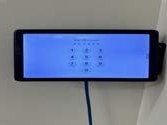
Zoom Room classroom with a PIN-protected wall touch pad, Extron controls and a motorized Da-Lite screen.
Display
Projection onto the motorized Da-Lite screen, controlled from the wall panel
Audio
Room speakers with Shure SLXD4+ wireless microphone system
Good to know
The wall touch pad asks for a PIN — get it from the Help Desk before class starts.
Equipment photos
Equipment in this room
- Wall-mounted Zoom Room touch pad (PIN protected)
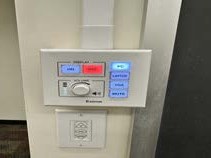
- Extron wall control panel
- Da-Lite motorized screen switch
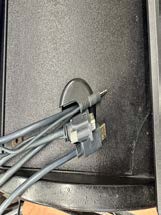
- HDMI, VGA and 3.5mm table cables
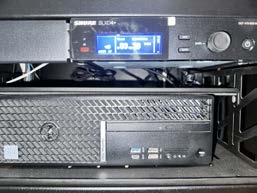
- Dell OptiPlex 7090 room PC
- Shure SLXD4+ wireless microphone receiver
Step by step
1. Turn on
- 1Wake the system: press ON at the Extron wall panel, Crestron panel or Zoom Rooms tablet.
- 2Wait 30-60 seconds — projectors and displays need time to warm up.
- 3Lower the screen with the Da-Lite wall switch in rooms that have one.
- 4Turn on the Dell room PC if the class uses it.
2. Connect
- 1Plug the room's HDMI cable into your laptop (use the adapter in the cabinet if needed).
- 2In rooms with VGA only, plug in the 3.5mm audio lead as well or there will be no sound.
- 3Select the matching source: PC, Laptop HDMI or Laptop VGA on the control panel.
- 4On Windows press Windows + P and choose Duplicate; on Mac open System Settings > Displays > Mirror.
3. Use
- 1Set volume with the room dial or panel first, then your laptop volume (keep laptop near 75%).
- 2For a Zoom class, start or join the meeting from the Zoom Rooms tablet or the room display.
- 3Mics: turn on the Shure handheld or lapel mic and check the battery indicator.
- 4Use the room camera and mics in Zoom — not your laptop's built-in ones.
4. Turn off
- 1Press OFF on the Extron or Crestron panel, or end the meeting on the Zoom tablet.
- 2Unplug your laptop and leave the cable coiled on the table — do not take cables with you.
- 3Turn mics off and set them back in the cabinet to charge.
- 4Log out of the room PC and raise the screen if it has a wall switch.
If something goes wrong
No image on the screen
- • Confirm the system is on at the Extron or Crestron panel.
- • Reseat the HDMI cable at both ends.
- • Press the correct source button (PC, Laptop HDMI, Laptop VGA).
- • Windows + P > Duplicate, or Mac Displays > Mirror.
No sound
- • Raise the volume dial on the wall panel.
- • On your laptop, set the output device to the room display or soundbar.
- • Using VGA? Plug in the 3.5mm audio lead — VGA carries picture only.
Laptop won't connect (Mac)
- • Use the USB-C to HDMI adapter kept in the AV cabinet.
- • Unplug, wait 10 seconds, plug back in.
- • Restart the laptop if the display still is not detected.
Microphone not working
- • Check the mic power switch and battery indicator on the Shure handheld.
- • Swap in a charged battery or a spare mic from the cabinet.
- • Confirm the Shure receiver in the rack shows a signal.
Zoom shows the wrong camera or mic
- • Zoom > Settings > Video: choose the room camera.
- • Zoom > Settings > Audio: choose the room soundbar or mic system.
- • Or simply run the meeting from the Zoom Rooms tablet instead of your laptop.
The wall touch pad asks for a PIN
- • The Zoom Room touch pad in AD30 is PIN protected.
- • Call the Help Desk for the current PIN before class.
Help Desk: (212) 280-1460 · helpdesk@utsnyc.edu